01
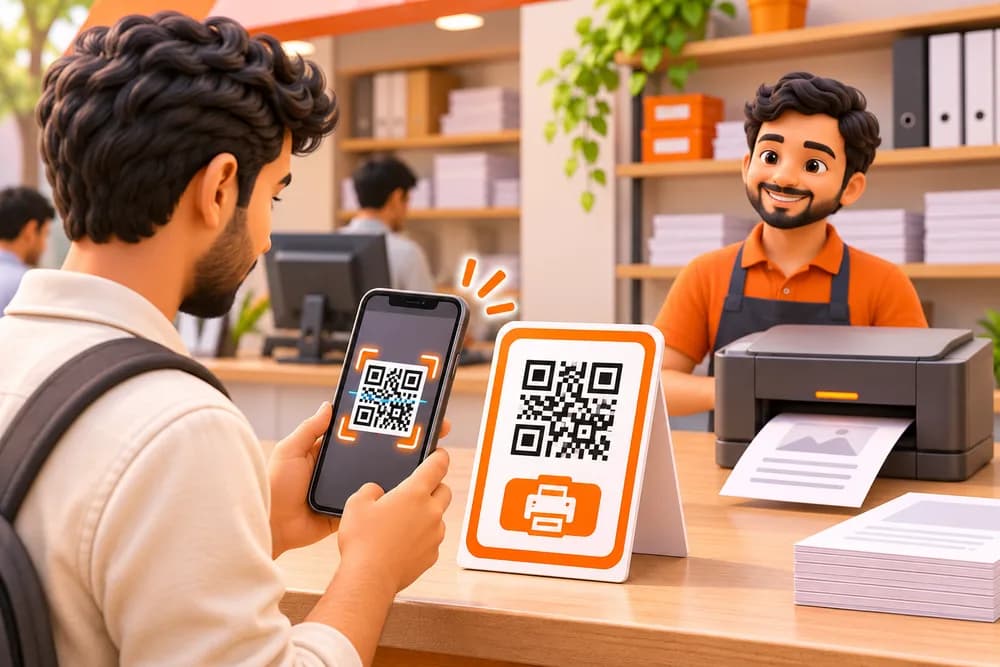
Scan the shop QR
Open the shop’s print page on your phone. No app to install.
 Create your QR code
Customers scan your shop QR, upload a file, choose print options, and send the order to you. You get the file and instructions together.

Files often arrive in chats or on pen drives. Staff then have to find the right file and ask how many pages or copies to print. With Scan to Print, the file and print instructions come together in one request.
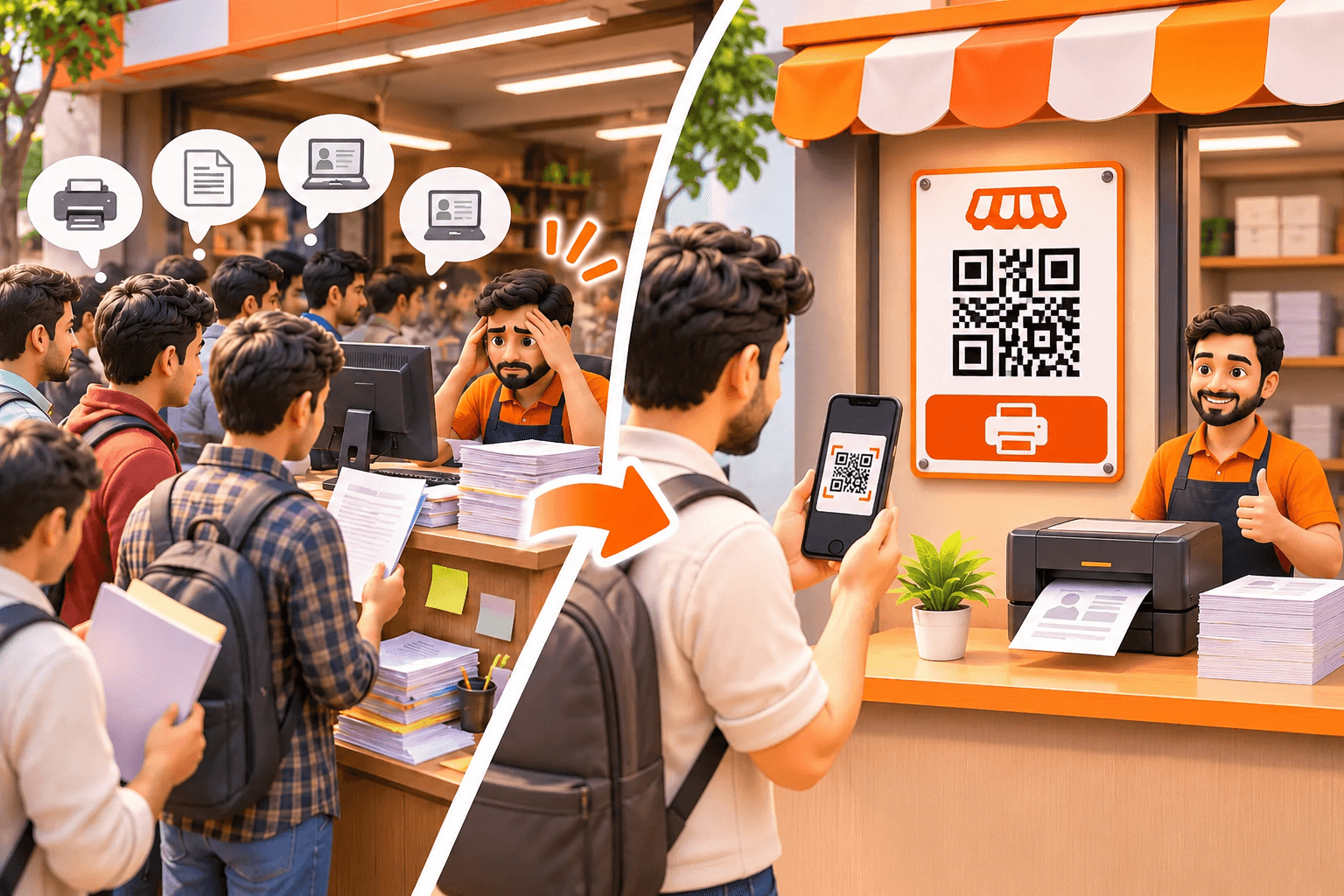
Customers know what they sent. Shops know exactly what to print. Everyone skips the “which file was that?” moment.
Open the shop’s print page on your phone. No app to install.
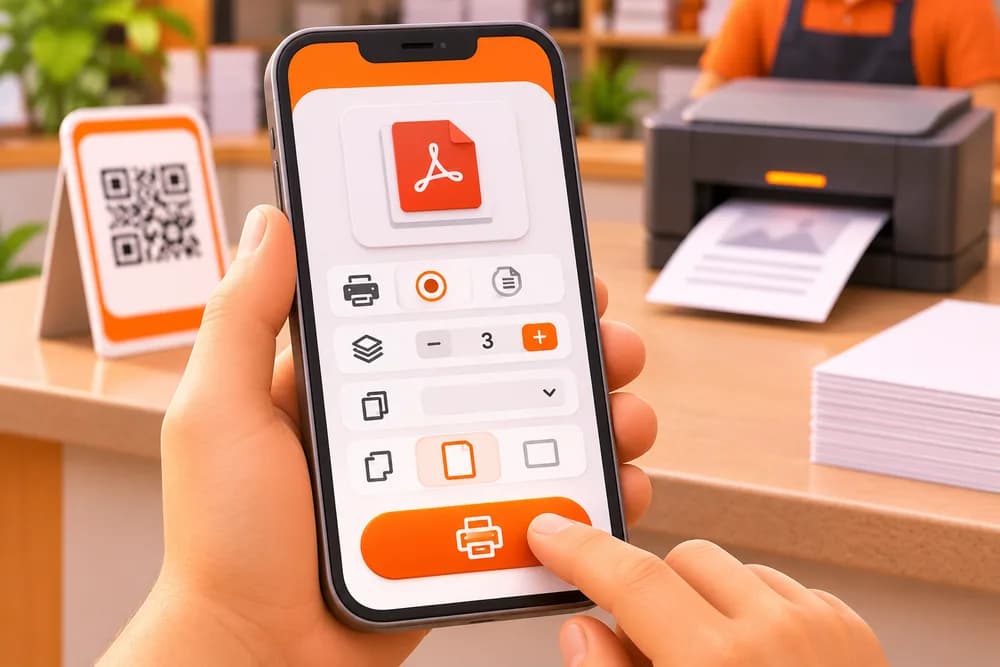
Choose a PDF or image and set the print details you need.
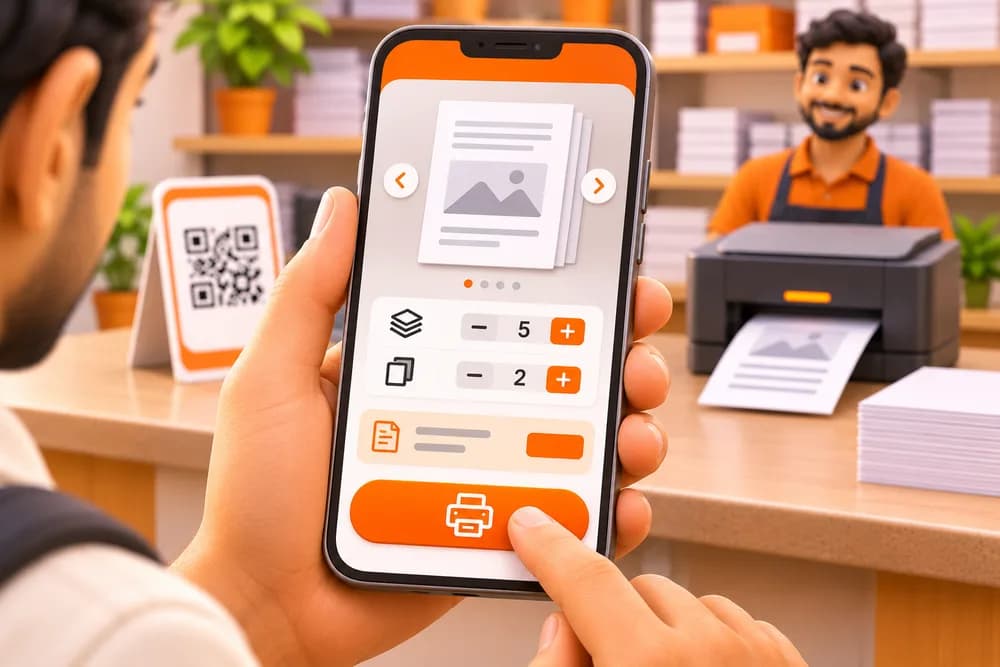
Check the options and see the final amount before you submit.
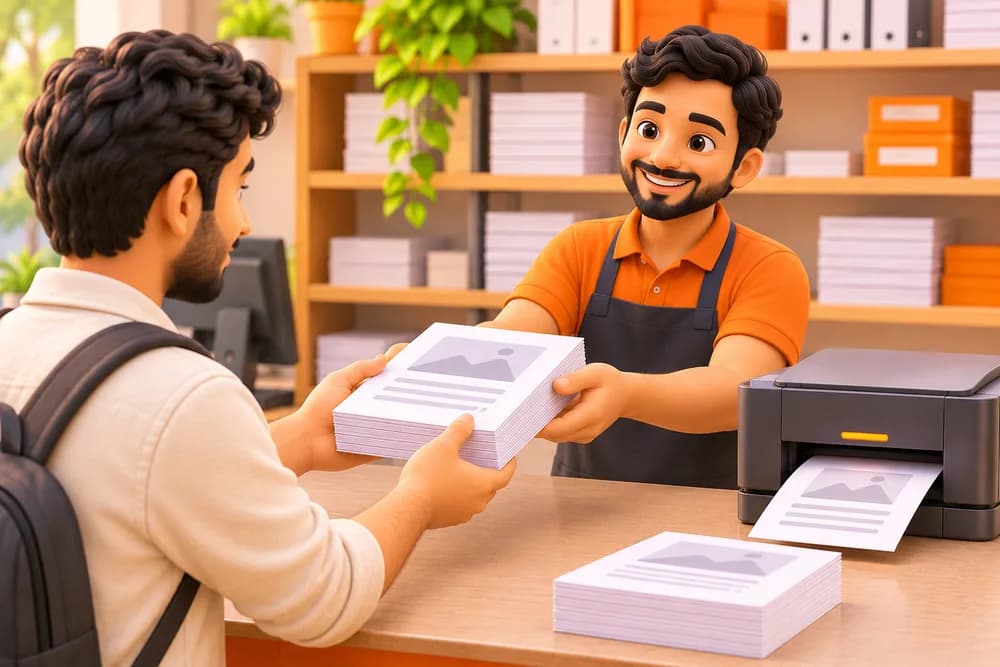
The shop prints your file using the requested settings. Check your pickup status from your phone.
Bring the file and print instructions into one clear request, so your staff can spend less time sorting messages and repeating questions.
See the document, copy count and colour choice together in one request.
SHOPKEEPER BENEFITCustomers choose print details on their phone before they submit the request.
SHOPKEEPER BENEFITSee incoming requests and mark printed jobs ready for pickup.
SHOPKEEPER BENEFITDownload the file and print it from your shop computer.
SHOPKEEPER BENEFITThe shop panel brings each customer’s file, print settings and job status together. Staff can check the request, print it, and mark it ready for pickup.
See the setup steps
Create your shop, set your rates, and share your QR at the counter.
Create your shop profile and get a QR code customers can scan at the counter.
Add your printer name and use your computer’s print dialog to print a job.
Review the request, print the selected pages and update the job for pickup.
What to know before taking your first print request.
Once your shop is set up, share your QR so customers can send files.
Open the job on your shop computer, download the file and print it using your usual print dialog. Read the QR code printer setup guide.
The customer sends a PDF or image and picks the number of copies and whether they want colour.
Your shop sets its print rates. Customers see the total before sending and pay at the counter.